Overlay Setup Guide
Heat Extension - Overlay Purchase
The URL is provided in your confirmation email, or on the bottom left corner of each preview overlay from the overlays page.
Set up instructions
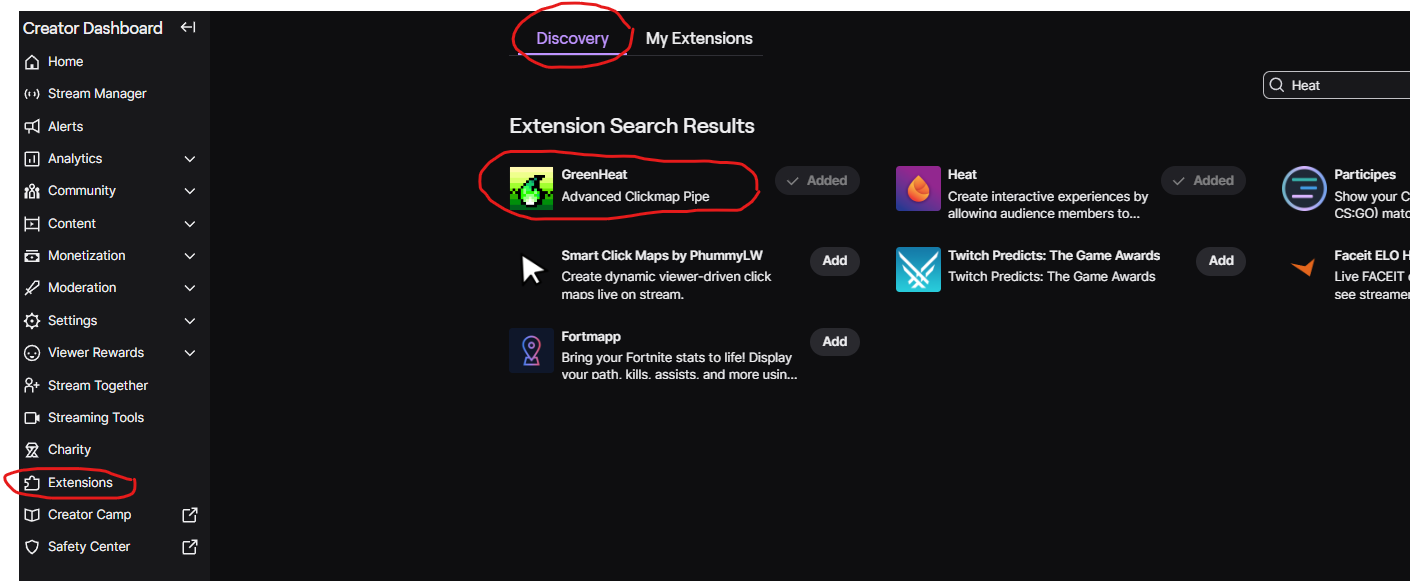
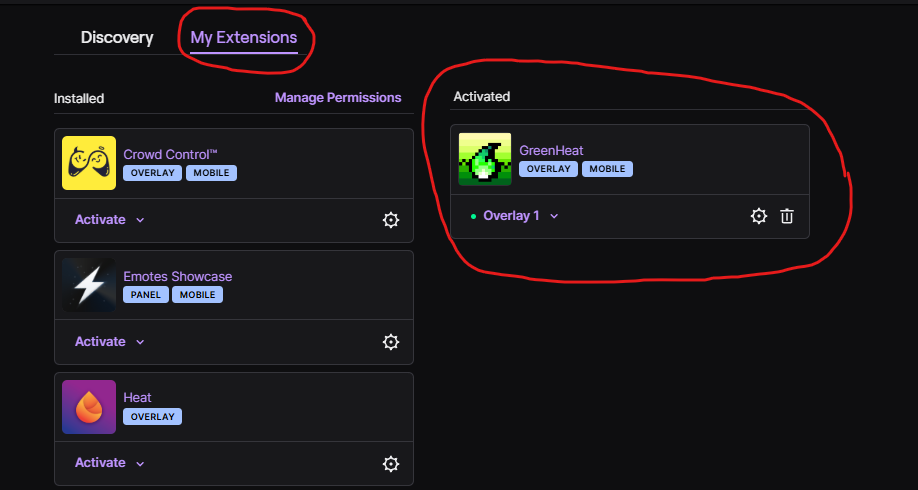
Go to your Twitch Dashboard and add the GreenHeat Extension. Ensure it is set to an overlay so it appears on the right side of your screen.
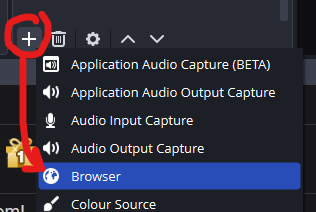
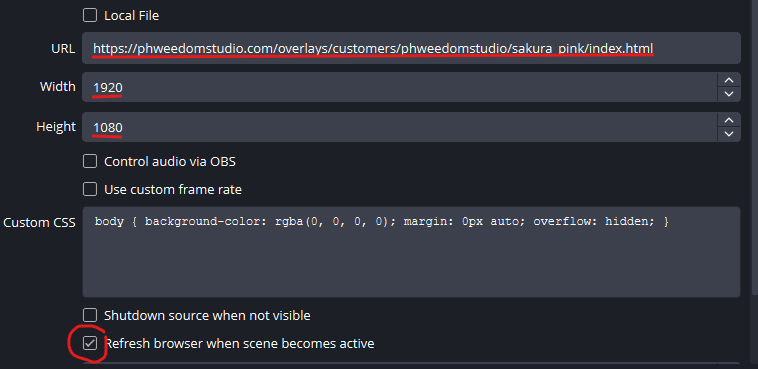
In OBS create a new browser source and paste the URL provided in your confirmation email into the URL field. Set the resolution to 1920 x 1080 and check the "refresh browser when scene becomes active" checkbox at the bottom.
Sometimes windows defender blocks the websockets. Windows Security → Virus & threat protection → Manage settings → Exclusions → Add or remove exclusions → Add an exclusion → Process, and add the websocket as an exclusion. (GreenHeat: heat.prod.kr) (Heat: heat-api.j38.net)
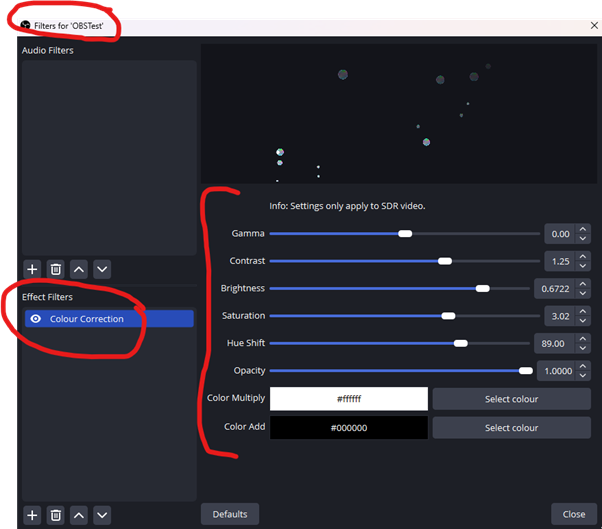
You can apply a colour correction filter in OBS on the browser source for additional control over the final look.